If the background noise is still playing on your computer, turn it off for now.
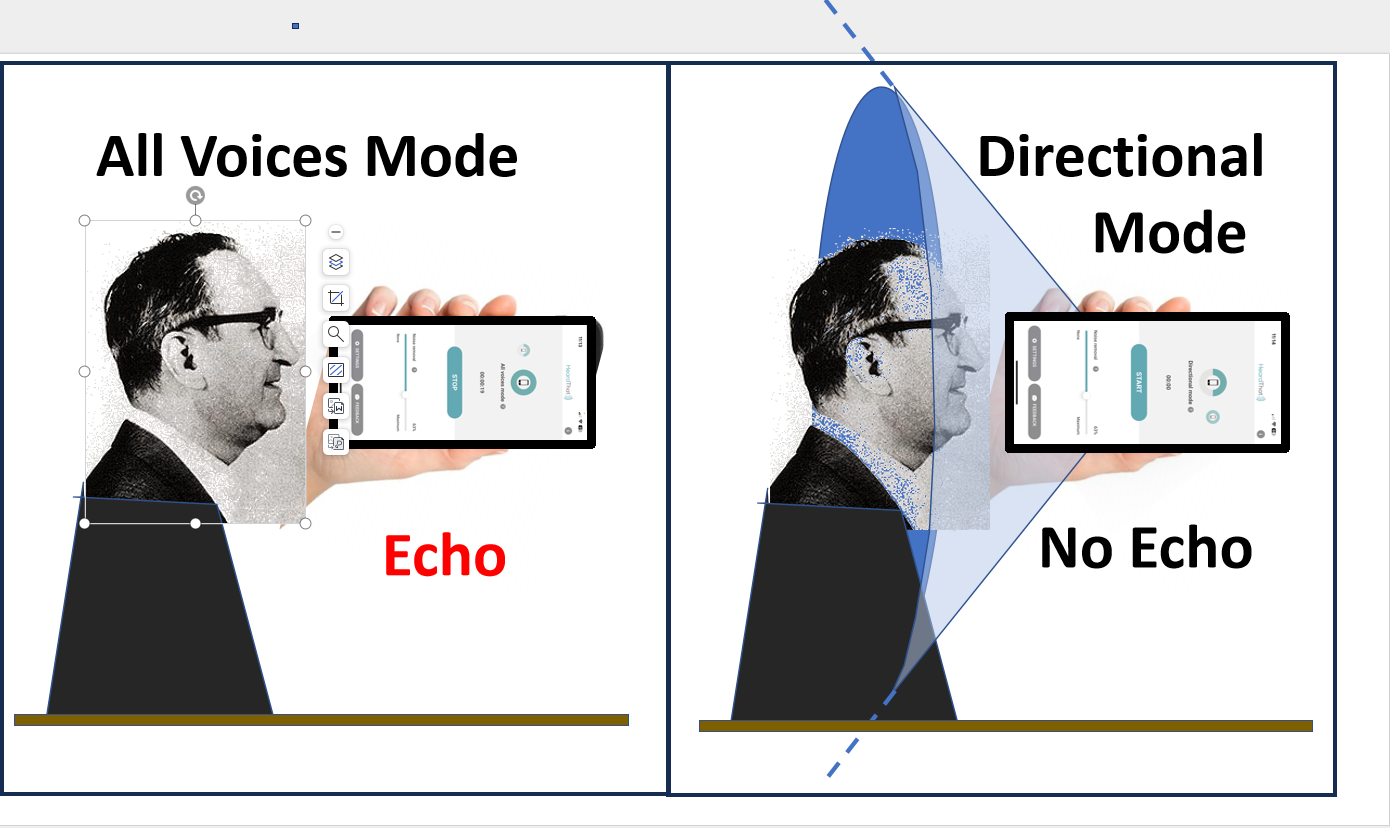
Whenever the app picks up your voice, you will hear an echo or reverberation of yourself. The echo is slightly delayed, which can be very annoying. But you can use the Directional mode to reduce or eliminate those echoes.
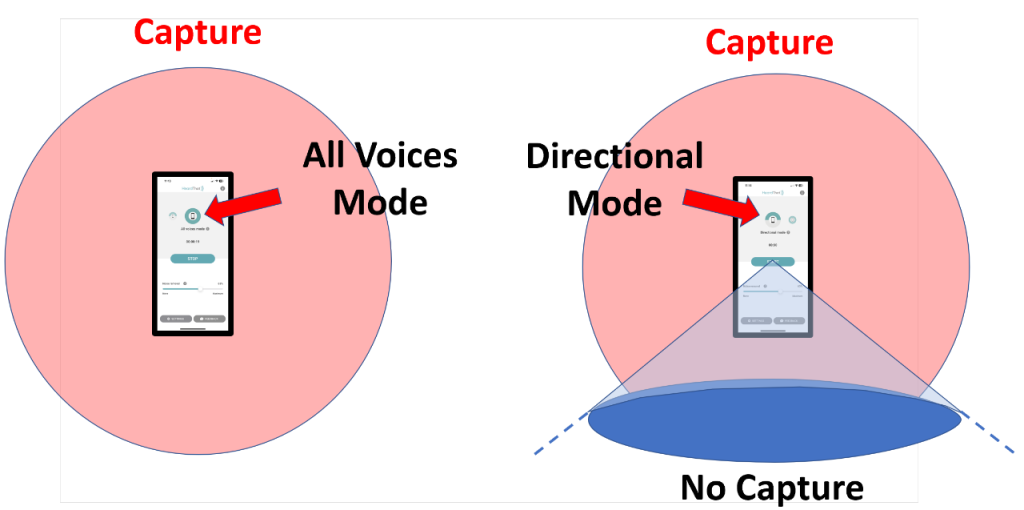
All Voices Mode
Directional Mode
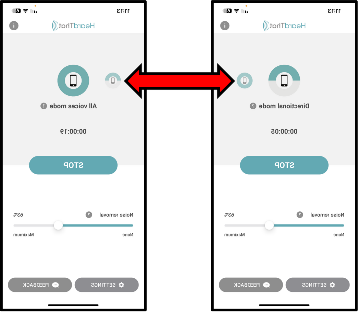
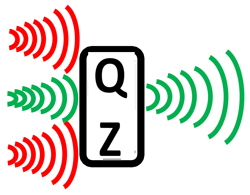
Tapping the small half-circle or the small full-circleicon switches the app between the “Directional mode” and the “All voices mode”
DirectionalMode: Pick up sounds coming toward the top of the phone
AllVoices Mode: Pick up sounds from all directions
Put your earbuds in Quiet (Noise Cancelling) mode
Start the HeardThat app on your phone
Click the icon for “Directional mode”
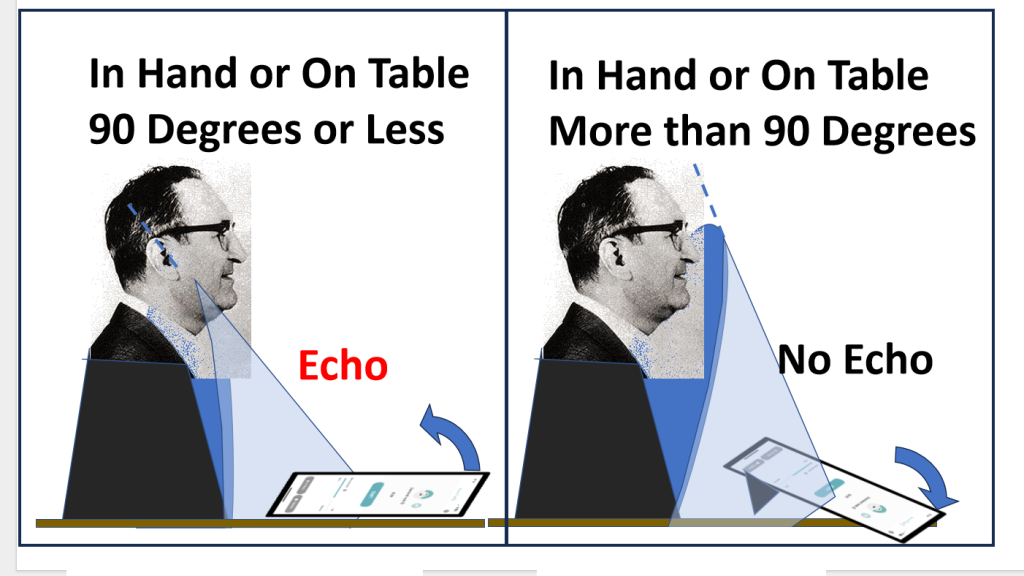
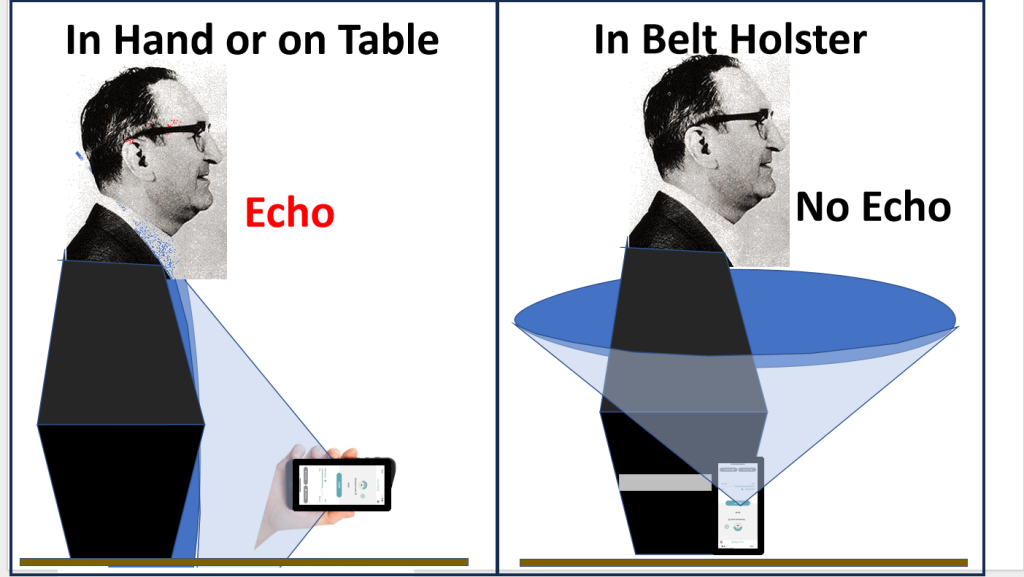
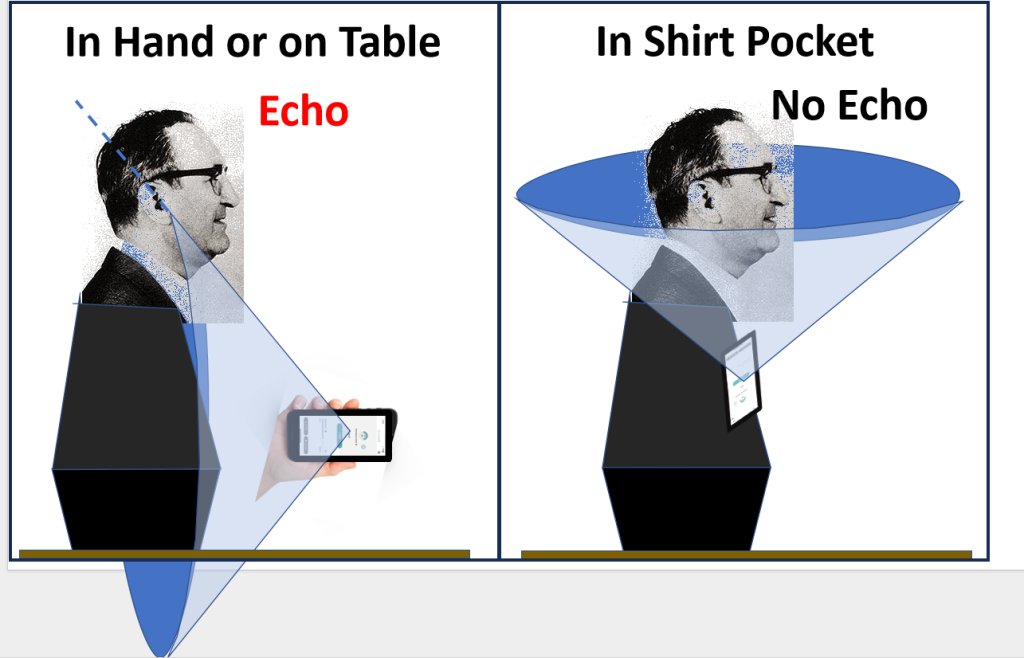
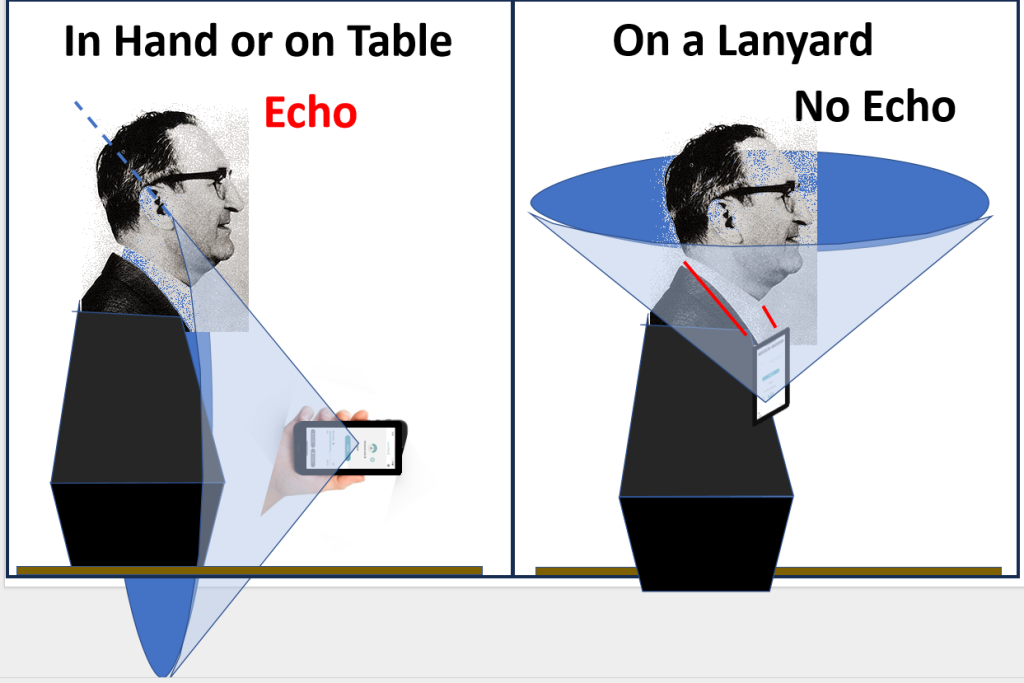
As shown in the pictures below, hold the phone close to your mouth and pointed away from you
Speak into the bottom of the phone and listen for any echo of your own voice
Switch the app to the All voices mode and test again
Switch the app back and forth between Directional mode and All voices mode until you are comfortable that you can use the Directional mode to reduce or eliminate echoes
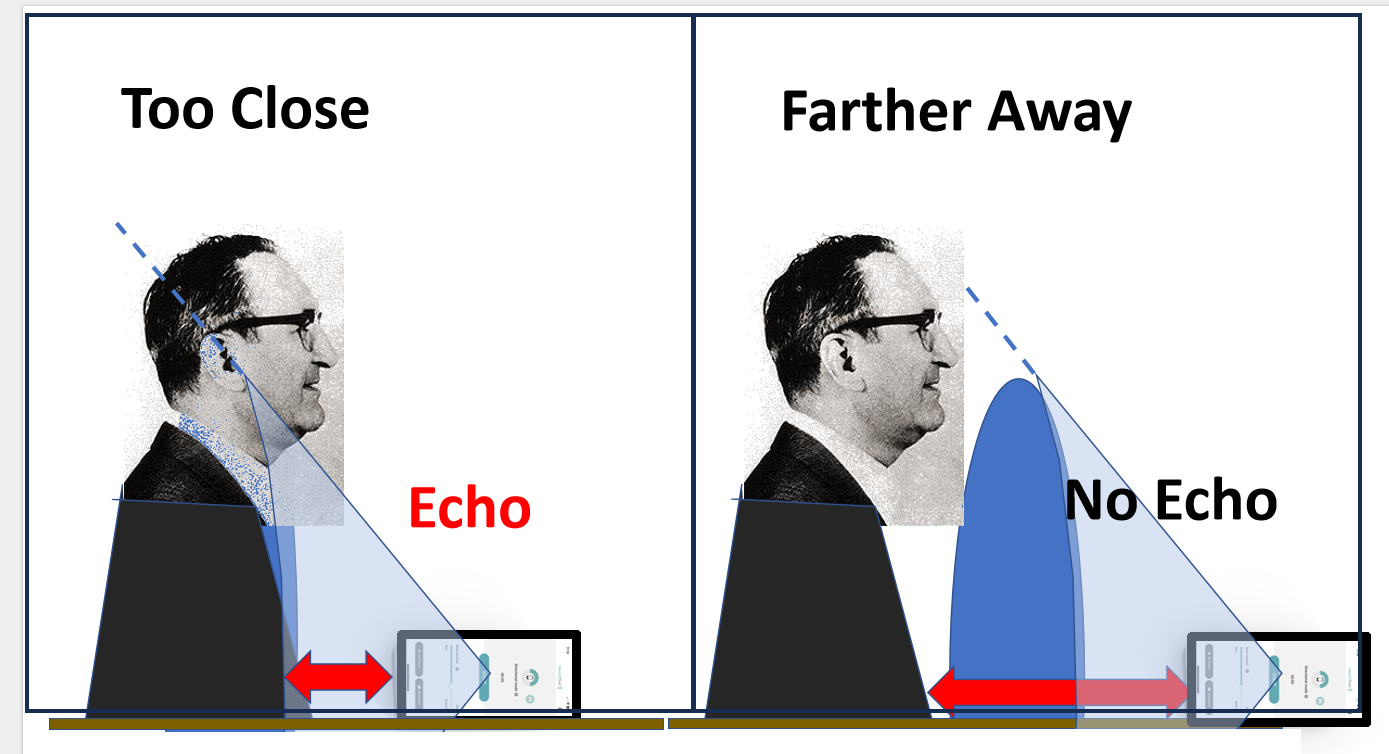
The following five diagrams show how the position of the phone affects the echoes you may hear even in Directional mode. Using the diagrams below, experiment holding or placing the phone in various positions to reduce or increase echoes.