If you already have the HeardThat app installed on your phone, skip down the heading “App Installed”
Here are the steps for manually installing the app:
- On an iPhone, open the App Store; on an Android phone open the PlayStore
- Search for the HeardThat App
- Click to install the app
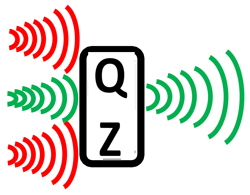
Or, you can use this QR Code and the camera on your smartphone to go directly to the app in the appropriate app store for your phone:
App Installed
- With your earbuds in your ears and paired to your phone, put the earbuds in Quiet (Noise Cancelling) mode
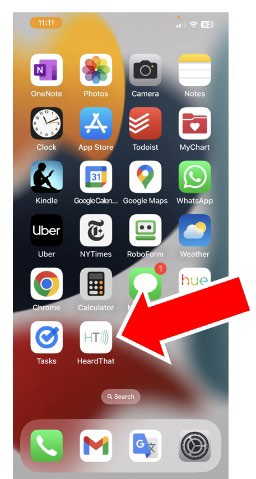
- Open the app by clicking the HeardThat icon
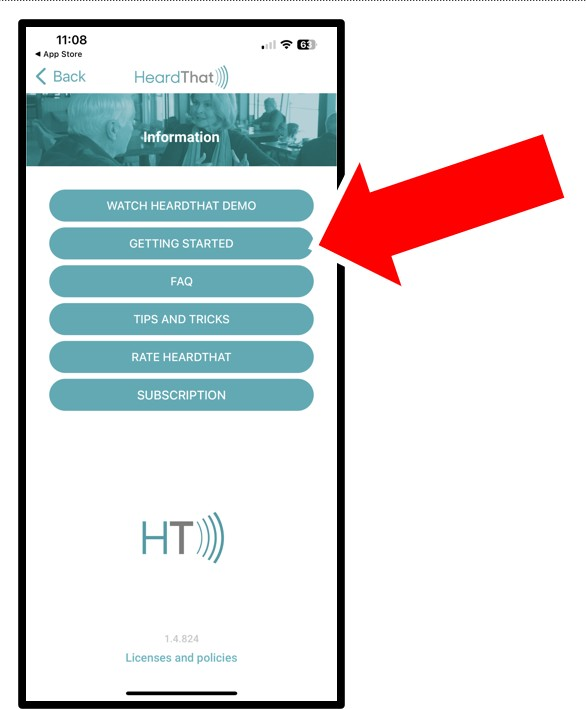
- If you wish, click to view the introductory video.
- To begin using the app, click “Get started”
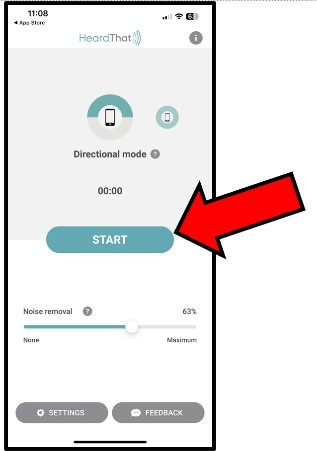
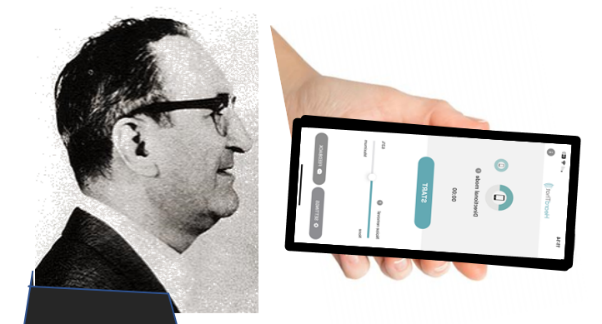
- On the main screen, click Start
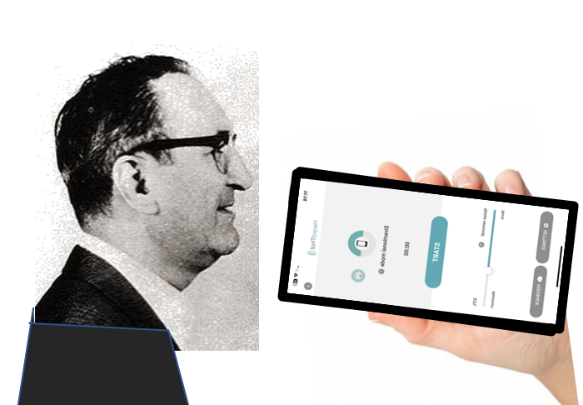
- Point the top of the phone toward your mouth, and speak. You should hear your voice through the earbuds.
- To adjust the volume, use the keys on the side of the phone
- Next point the top of the phone away your mouth and speak. You should not hear your voice through the earbuds.
Test the directional mode of the app by
speaking while holding the phone at
various angles to your mouth
For help, raise your hand in Zoom session